The procedures described here will work for either IE 6 or IE 7 or IE 8.
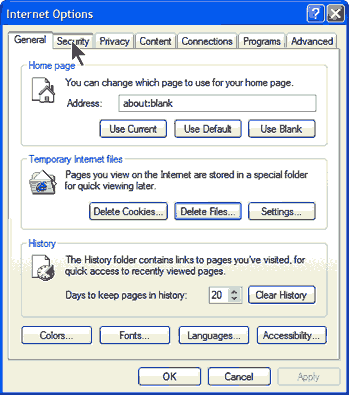
1. Open Internet Explorer and go to Tools-Internet Options-Security
2. Click the "Security" tab and choose the "Trusted Sites" icon.
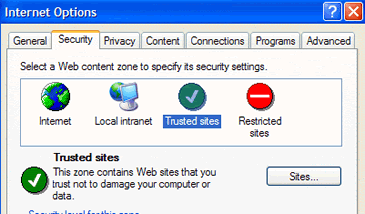
3. Then click on the button "Sites". A window will open, where you can add any sites that you wish to be in the Trusted zone. Be sure to remove the check by the entry "Require server verification (https:)...."
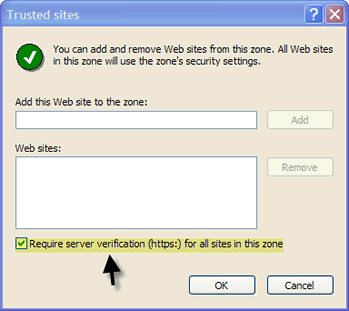
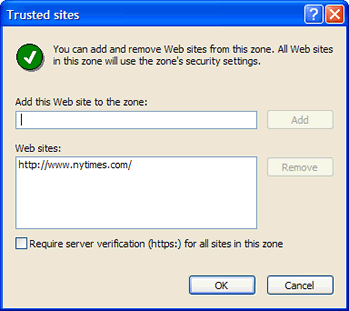
4. Enter the site of interest in the line provided. Site URLs can be typed in directly or entered by copying and pasting. A shortcut method of copying and pasting an URL from the IE address bar is to use the keyboard command ALT+D to select the Web address and then use CTRL+C to copy it to the Windows Clipboard. Then right-click in the space under "Add this Web site to the zone" and choose "Paste" from the context menu. The example below shows the NY Times site being added. Note that it is not an https site and that the appropriate box is unchecked. After entering a site click the "Add" button.

5. The site is now added to the list of trusted sites.